 Digital Banking

Get Started with the new
BankFund Digital Banking
Download the New
Digital Banking App!
Follow the steps below to download the new mobile app or
access Digital
Banking through your browser.
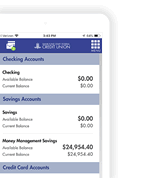
ImportantIf using an iPhone or iPad and your BankFund app doesn't update to the new version automatically, you can find it in the app store and click on update. Another option is to delete the old app and download the new one following the instructions below.Need to know how the new app looks? Type BankFund in the App Store or Google Play and look for our new logo! |
 |
iPhone or
iPad
- Open the Apple App Store.
- Search for BankFund.
- Verify that you have selected the official BankFund app.
- Tap Get to download the app.
- Open the app and follow the instructions to get started.

Android
- Open the Google Play Store.
- Search for BankFund.
- Verify that you have selected the official BankFund app.
- Tap Install.
- Open the app and follow the instructions to get started.

Prefer to Use a Browser?
You can also access Digital Banking directly through your computer or mobile
browser. No app download is required.
Log in to your Digital
Banking
For your security, we recommend accessing Digital Banking directly
through BankFund's website (https://bfsfcu.org) instead of saving or using links from
unfamiliar sources.
Turn On Push Notifications
We recommend enabling push notifications to receive important Digital Banking alerts and updates on your mobile device.
iPhone or iPad
After downloading the app:
- Open Settings on your iPhone.
- Select Notifications.
- Find the BankFund Digital Banking app.
- Turn on Allow Notifications.
- Choose your preferred notification options.
Android
Settings may vary slightly depending on your device:
- Open Settings.
- Select Notifications or Apps & Notifications.
- Select the BankFund Digital Banking app.
- Select Notifications.
- Turn notifications On.
Need help?
We're here to help make your transition to the new Digital Banking experience as easy as possible.
Digital Banking Resource Center